

My fully updated Kenku FM Discord Setup Guide is now available, replacing all older instructions that relied on the outdated Discord Audio Pipe method. The new workflow focuses on cleaner routing, faster configuration, and more reliable audio performance for tabletop RPG sessions. Anyone who wants high-quality Syrinscape, web audio, or local sound effects inside a Discord voice channel can follow this improved structure and gain a noticeable upgrade in consistency and clarity.
Kenku FM Discord Setup Guide
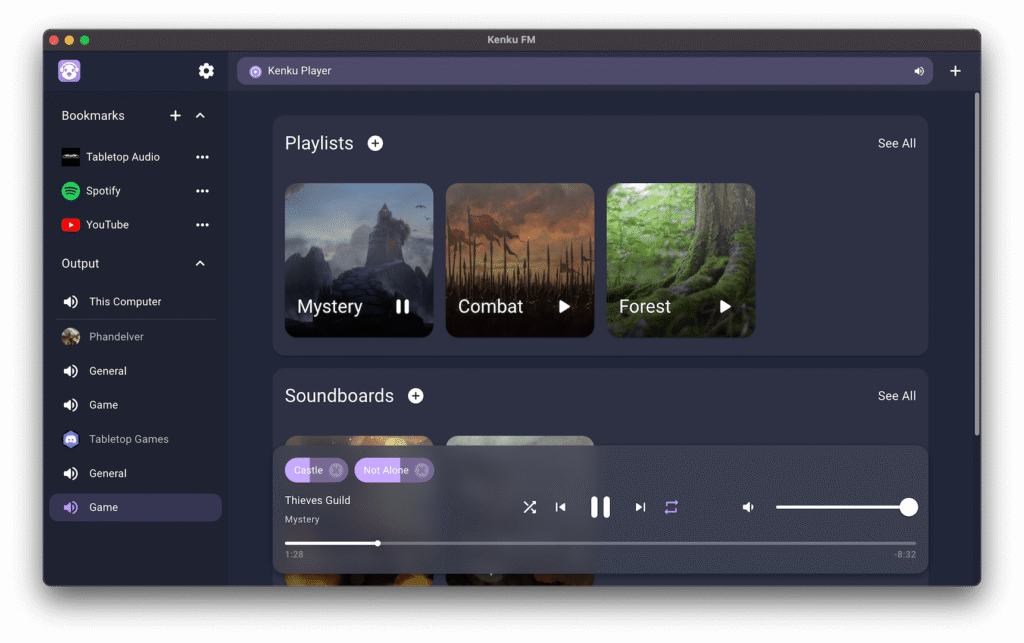
This guide now highlights two main approaches. Both methods aim to deliver simple, stable audio within Discord, but each serves a different type of user. The first uses Kenku’s web interface to pull audio directly from Syrinscape Online or fromany browser-based source, such as YouTube or ambient sound libraries. The second focuses on local audio routing for people who prefer offline control or who need more precision when working with high-quality audio tools.
The web method is by far the easiest option for most players and game masters. Kenku includes a built in browser window, so you can log into Syrinscape Online, trigger soundsets, switch moods, or play isolated one-shot effects without leaving the Kenku interface. You can also stream any audio you want, as long as it can play through a standard web page. This gives you a fast way to use curated soundtracks, ambient noise loops, or your own uploads hosted on a private site. A major advantage is that you avoid complex routing software and reduce audio desync problems. This approach works well for users who want simple control, minimal setup time, and the easiest path to stable Discord playback.
The local method speaks to users who have personal audio libraries or who want to curate soundboards inside their own machine. Kenku can import and manage local audio files, including music tracks, sound effects, or custom mixes. This method gives you reliable offline access, which is ideal for people running sessions in locations with inconsistent internet or for users who keep custom recordings that are not available on Syrinscape Online.
The more advanced version of the local method involves VB Audio Virtual Cable. This setup allows you to run Syrinscape’s offline desktop client and route its output directly into Kenku as a virtual input. From there, Kenku sends the blended audio into Discord. Although this technique is more technical, it offers fine control over levels, fades, timing, and layering. It also gives you access to features from the Syrinscape desktop client that are not available in the online interface. Game masters who want granular control during encounters or cinematic moments often prefer this option because it allows more dynamic sound shaping. Just be careful with this one, the more complications create additional breaking points.
All three approaches work with the updated Kenku workflow, which eliminates the old Discord Audio Pipe approach entirely. The older method created reliability issues, inconsistent volume, and conflicts with Discord input settings. The new processes emphasize stability and predictable routing so your players hear exactly what you intend every time.
If your goal is to deliver high-quality RPG audio inside Discord, this redesigned Kenku Discord Setup Guide is built to help you create a controlled sound environment with fewer technical obstacles. Kenku FM acts as the central hub, while Syrinscape, YouTube, local audio files, and VB Audio Cable provide flexible ways to feed the system. You can now choose a method that matches your technical comfort level while still achieving professional audio results for online tabletop gaming.
I hope you enjoy the new format, and please comment on the video if you have questions or suggestions!
Check out Kenku.fm here
Checkout also my Cyberpunk sessions and Call of Cthulhu!
Leave a Reply